CC Switch
The All-in-One Manager for Claude Code, Claude Desktop, Codex, Gemini CLI, Grok Build, OpenCode, OpenClaw, Hermes Agent, Pi & MiniMax Code
Switch API providers in one click and manage MCP, Skills, and Prompts in one place — no more hand-editing JSON / TOML / YAML config files.




🌐 The Only Official Website: ccswitch.io
English | 中文 | 日本語 | Deutsch | Changelog
Download · Quick Start · Features · FAQ · User Manual
❤️Sponsor
Want to appear here?
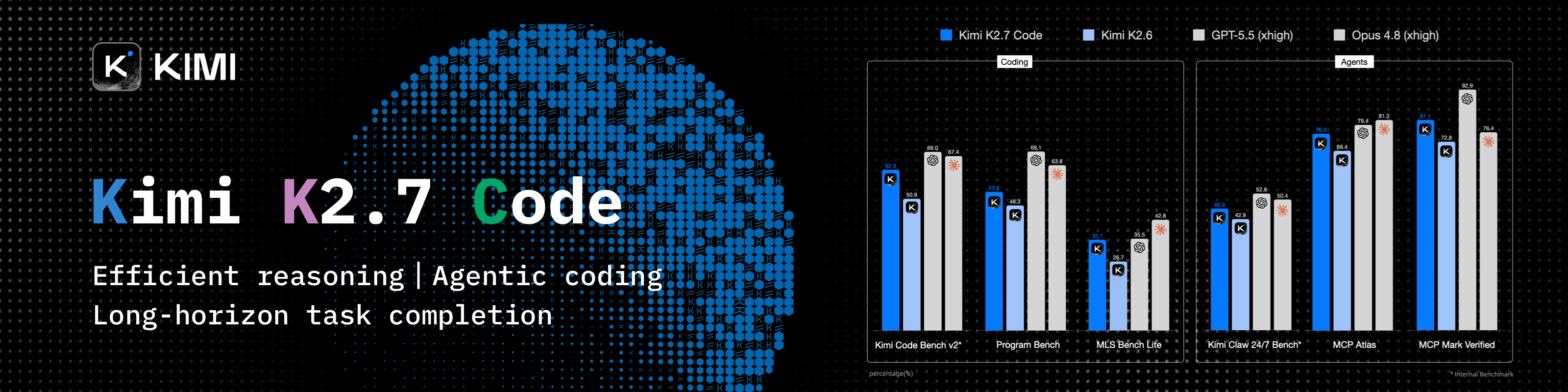
Kimi K3 is Moonshot AI's most capable model and the world's first open 3T-class model. With 2.8 trillion parameters, native vision, and a 1-million-token context window, K3 delivers frontier performance across long-horizon coding, knowledge work, and reasoning. CC Switch makes it easy to configure and switch to Kimi across agentic tools.
Try a Kimi Code plan (中文站 | Global), or use the API through the Kimi Open Platform (中文站 | Global).
New user top-up bonus: register and complete your first top-up via the API links above to receive 10% of the amount as bonus API credit, up to CNY ¥1,000.
Why CC Switch?
AI coding tools like Claude Code, Codex, and Gemini CLI each have their own configuration format. Switching API providers means hand-editing JSON, TOML, YAML, or .env files, and MCP, Skills, and prompts have to be maintained separately in every tool.
CC Switch brings all of this into a single desktop app: pick a preset, enter your key, and switch in one click, without losing your existing configuration.
- One App, Ten Tools — Claude Code, Claude Desktop, Codex, Gemini CLI, Grok Build, OpenCode, OpenClaw, Hermes, Pi, and MiniMax Code
- No More Manual Editing — 90+ provider presets including AWS Bedrock, NVIDIA NIM, and community relays
- Use GPT in Claude Code, Claude in Codex — Built-in local routing automatically converts between Anthropic, OpenAI, and Gemini API formats, with automatic failover
- Centralized MCP, Skills & Prompts — Add MCP servers and Skills once, then choose which tools to sync them to; prompts are maintained separately for each tool
- Usage & Quotas at a Glance — Track token usage and spending even without local routing; subscription quotas and balances show right on provider cards and in the tray
- Cross-Platform — Native desktop app for Windows, macOS, and Linux, built with Tauri 2
Screenshots
| Main Interface | Add Provider |
|---|
| |
Download & Installation
System Requirements
- Windows: Windows 10 and above
- macOS: macOS 12 (Monterey) and above
- Linux: x86_64 or ARM64 with glibc 2.35+ and WebKitGTK 4.1 — e.g. Ubuntu 22.04+, Debian 12+, and recent Fedora releases; RHEL / Rocky / Alma 8–9 are not supported yet
Windows Users
Download the latest CC-Switch-v{version}-Windows.msi installer or CC-Switch-v{version}-Windows-Portable.zip portable version from the Releases page. On Windows on ARM, download CC-Switch-v{version}-Windows-arm64.msi or CC-Switch-v{version}-Windows-arm64-Portable.zip.
macOS Users
Method 1: Install via Homebrew (Recommended)
brew install --cask cc-switch
Update:
brew upgrade --cask cc-switch
Method 2: Manual Download
Download CC-Switch-v{version}-macOS.dmg (recommended) or .zip from the Releases page. It's a Universal build that runs natively on both Apple Silicon and Intel Macs.
Note: CC Switch for macOS is code-signed and notarized by Apple. You can install and open it directly.
Arch Linux Users
Install via paru (Recommended)
paru -S cc-switch-bin
Linux Users
Download the latest Linux build from the Releases page:
CC-Switch-v{version}-Linux-x86_64.deb / -Linux-arm64.deb (Debian/Ubuntu)CC-Switch-v{version}-Linux-x86_64.rpm / -Linux-arm64.rpm (Fedora and other RPM distros that ship WebKitGTK 4.1)CC-Switch-v{version}-Linux-x86_64.AppImage / -Linux-arm64.AppImage (any distro meeting the requirements above)
Flatpak: Not included in official releases. You can build it yourself from the .deb — see flatpak/README.md for instructions.
Quick Start
Basic Usage
- Add Provider: Click "Add New Provider" (the + button) in the toolbar → Choose a preset or create a custom configuration
- Switch Provider:
- Main UI: Select provider → Click "Enable" (for OpenCode, OpenClaw, Hermes, and MiniMax Code the button is "Add"; these four tools and Pi are coexist-mode tools, so you can add several providers at once)
- System Tray: Click provider name directly (Claude Code, Codex, Gemini CLI, and Grok Build only)
- Takes Effect: Claude Code needs no restart; for Codex, Gemini CLI, and Grok Build, restart your terminal or the CLI tool; for Claude Desktop, restart the app itself (see FAQ)
- Back to Official Login: Switch to the built-in official provider in the list (e.g. "Claude Official"), restart the tool, then follow its login/OAuth flow
- Local Routing (optional): To use OpenAI- or Gemini-format providers in Claude Code, or to use Claude in Codex, you need to turn on local routing. In "Settings → Routing → Local Routing", turn on "Routing Master Switch", then turn on the tool you need under "Routing Enabled". To toggle it right from the top of the main page, turn on "Show Routing Toggle on Main Page"
MCP, Prompts, Skills, Projects & Sessions
- MCP: Click "MCP Management" → Add servers via templates or custom config (or "Import Existing") → Toggle sync for each tool
- Prompts: Click "Prompts" → Create prompts with the Markdown editor → Enable one to write it to that tool's prompt file
- Skills: Click "Skills" → "Discover Skills" → Search skills.sh or browse GitHub repos → One-click install to supported tools
- Projects: On the Claude Code, Claude Desktop, or Codex page, open the project switcher at the top of the main page → "New project" to save the current configuration; later, pick it from the switcher to switch the whole setup at once
- Sessions: Click "Session Manager" → Browse, search, and restore each tool's conversation history
Note: On first launch, CC Switch automatically imports your existing Claude Code, Codex, Gemini CLI, and Grok Build configuration as a provider named default and adds an official provider for each of these tools and Claude Desktop, so nothing you had configured is lost.
For detailed guides on every feature, check out the User Manual, covering provider management, MCP/Prompts/Skills, local routing & failover, and more.
Features
Full Changelog | Release Notes
Supported Features by Tool
| Tool | Providers | Local Routing | Tray Switching | MCP | Skills | Prompts | Sessions | Usage Stats |
|---|
| Claude Code | Switch | ✓ | ✓ | ✓ | ✓ | CLAUDE.md | ✓ | ✓ |
| Claude Desktop | Switch | Model Mapping only | – | – | – | – | – | Model Mapping only |
| Codex | Switch | ✓ | ✓ | ✓ | ✓ | AGENTS.md | ✓ | ✓ |
| Gemini CLI | Switch | ✓ | ✓ | ✓ | ✓ | GEMINI.md | ✓ | ✓ |
| Grok Build | Switch | ✓ | ✓ | ✓ | ✓ | AGENTS.md | ✓ | ✓ |
| OpenCode | Coexist | – | – | ✓ | ✓ | AGENTS.md | ✓ | ✓ |
| OpenClaw | Coexist | – | – | – | – | Workspace editor | ✓ | – |
| Hermes | Coexist | – | – | ✓ | ✓ | Memory | ✓ | – |
| Pi | Coexist | – | – | – | ✓ | AGENTS.md, SYSTEM.md, prompt templates | ✓ | ✓ |
| MiniMax Code | Coexist | – | – | ✓ | ✓ | AGENTS.md | ✓ | ✓ |
- Switch: only one provider is active at a time; Coexist: multiple providers are written into the tool's own config at the same time, and you pick one inside the tool.
- Local Routing: CC Switch forwards requests on your machine and converts API formats; see Local Routing & Failover below. Claude Desktop providers can use "Direct" or "Model Mapping"; with "Model Mapping", requests go through local routing.
- Sessions: Browse and search conversation history, and copy a resume command to continue a conversation (resuming OpenClaw and Hermes sessions isn't supported yet). To view Hermes sessions, select "All" in the Session Manager.
- Usage Stats: Without local routing, usage is collected from each tool's local session logs; requests that go through local routing are counted as well.
- The MCP, Skills, Prompts, and Sessions panels opened from the Claude Desktop page apply to Claude Code.
Provider Management
- 90+ provider presets — Pick a preset and enter your key to add a provider, or create a custom configuration
- Projects — Save Claude Code's or Codex's current provider, MCP, Skills, and prompt files as a project (for Claude Desktop, only the provider is saved), then switch the whole setup in one click from the project switcher at the top of the main page or from the tray; when you switch to another project, the current state is automatically saved back to the previous project
- OAuth Authentication Center (Beta) — Sign in to multiple GitHub Copilot, ChatGPT, and xAI (Grok) accounts in "Settings → Auth" and use those subscriptions as providers in Claude Code, Claude Desktop, and Codex (everything except Codex's OpenAI Official requires local routing). Using a subscription outside the official client may violate the vendor's terms of service; assess the risk yourself
- Third-party providers for Claude Desktop — Connect directly to Anthropic-compatible endpoints; for non-Claude models, choose "Model Mapping" to map tiers like Sonnet, Opus, and Haiku to the provider's actual models through local routing
- Universal providers — One config syncs to Claude Code, Codex, and Gemini CLI
- One-click switching, system tray quick switching (Claude Code, Codex, Gemini CLI, Grok Build), drag-and-drop sorting, import/export
Local Routing & Failover
- API format conversion — Local routing converts requests between Anthropic Messages, OpenAI Chat Completions, OpenAI Responses, and Gemini Native: Claude Code and Claude Desktop can use OpenAI- or Gemini-format providers, and Codex and Grok Build can use Chat Completions or Anthropic Messages providers
- Per-tool toggle — Local routing can be turned on separately for Claude Code, Codex, Gemini CLI, and Grok Build; once it's on, switching providers takes effect immediately for subsequent requests (Codex and Grok Build may still need a restart if the switch changes the model)
- Auto-failover — Configure a failover queue for each tool; when a request fails, CC Switch automatically moves on to the next provider in the queue, backed by a circuit breaker and provider health monitoring
- Rectifier — Automatically fixes certain requests that some upstreams can't handle (e.g. Thinking signatures, or falling back when images aren't supported)
- Official providers (e.g. Claude Official) can't go through local routing (except Codex's OpenAI Official)
- Guides: Using GPT in Claude Code · Using Claude in Codex
MCP, Prompts & Skills
- Unified MCP panel — Manage all MCP servers in one place, choose which tools to sync each one to, import existing configs from each tool, and import via Deep Link
- Prompts — A per-tool prompt library with a Markdown editor; enabling a prompt writes it to that tool's prompt file (CLAUDE.md / AGENTS.md / GEMINI.md), and the file's existing content is saved back to the library first, so nothing is lost. Pi can also edit SYSTEM.md, APPEND_SYSTEM.md, and prompt templates
- Skills — Search skills.sh, or install in one click from GitHub repos or ZIP files; check for updates and update all in one click; sync to each tool via symlinks or file copies; you can optionally store them in
~/.agents/skills
- All three panels support search, and MCP and Skills can also be enabled or disabled all at once per tool
Usage & Cost Tracking
- Usage dashboard — Works without local routing: by default it automatically scans each tool's local session logs and tracks requests, tokens, cache hit rate, and spending by provider and model, with trend charts and per-request logs
- Quotas & balances — Provider cards and the tray show official subscription quotas (Claude, ChatGPT, Gemini, SuperGrok), Coding Plan 5-hour / weekly / monthly quotas (Kimi, Zhipu GLM, MiniMax, Volcengine Ark, etc.), and account balances (DeepSeek, OpenRouter, SiliconFlow, etc.); some need to be turned on first via "Configure usage query" on the provider card, and for other providers you can write a custom usage script
- Custom pricing — Set per-model prices, or import them from models.dev
Session Manager & Workspace
- Session Manager — Browse and search each tool's conversation history, and copy a resume command to continue a conversation; on macOS you can resume in a terminal with one click
- Workspace editor (OpenClaw) — Edit agent files (AGENTS.md, SOUL.md, etc.) and daily memory
- Memory (Hermes) — Edit Hermes's MEMORY.md and USER.md
System & Platform
- Cloud sync — Sync across devices via WebDAV (Jianguoyun, Nextcloud, Synology NAS, etc.) or S3-compatible storage (AWS S3, Cloudflare R2, Alibaba Cloud OSS, Tencent Cloud COS, etc.); you can also put the CC Switch configuration directory in a cloud drive folder such as Dropbox, OneDrive, or iCloud
- CLI tool management — On the "About" page, see the current and latest versions of command-line tools like Claude Code and Codex, install, upgrade, or upgrade all in one click, and diagnose duplicate installations; on Windows it can also manage tools inside WSL (see FAQ)
- Deep Link (
ccswitch://) — Import providers, MCP servers, and prompts, or add skill repositories, in one click via a link
- Built-in utilities — Skip Claude Code's first-run confirmation, hide AI attribution, have the VS Code Claude Code extension follow CC Switch's provider switches, and more
- Dark / Light / System theme, auto-launch, auto-updater, atomic writes, auto-backups, i18n (zh/zh-TW/en/ja)
FAQ
CC Switch supports ten tools: Claude Code, Claude Desktop, Codex, Gemini CLI, Grok Build, OpenCode, OpenClaw, Hermes, Pi, MiniMax Code. Each tool has dedicated provider presets and configuration management; see Supported Features by Tool for what each one supports.
It depends on the tool:
- Claude Code: supports hot-switching of provider data — no restart needed.
- Codex, Gemini CLI, Grok Build: restart your terminal or the CLI tool for changes to take effect (CC Switch reminds you after switching Codex or Grok Build). With local routing on, requests go to the new provider immediately, but Codex and Grok Build may still need a restart if the switch changes the model.
- Claude Desktop: fully quit and reopen Claude Desktop; when using "Model Mapping", also keep CC Switch running.
- OpenCode, OpenClaw, Hermes, Pi, MiniMax Code: these are coexist-mode tools — clicking "Add" ("Enable" for Pi) writes the provider into the tool's own config alongside the others; you then pick the model you want inside the tool.
CC Switch uses a "Common Config Snippet" (available for Claude Code, Codex, and Gemini CLI) to share settings other than the API key, endpoint, and model — such as plugins, hooks, and environment variables — across providers. Edit a provider → click "Edit Common Config" → "Extract from Editor" to save these shared parts into the snippet; when creating a new provider, keep "Apply Common Config" checked (enabled by default) and the snippet is merged into the new provider's config. For Claude Code and Codex providers with "Apply Common Config" checked, CC Switch automatically re-extracts the shared parts from the current config when you switch away, so plugins you install inside the tool carry over to the next provider. Your original configuration is preserved in the default provider imported the first time you ran the app.
CC Switch follows a "minimal intrusion" design principle — even if you uninstall the app, your tools will continue to work normally.
So for tools that use one active provider at a time (Claude Code, Claude Desktop, Codex, Gemini CLI, Grok Build), the system always keeps one active configuration, because deleting all configurations would make the corresponding tool unusable. Coexist-mode tools (OpenCode, OpenClaw, Hermes, Pi, and MiniMax Code) aren't subject to this restriction — you can delete any provider directly. If you rarely use a tool, you can hide it in Settings. To switch back to official login, see the next question.
In CC Switch, the provider lists for Claude Code, Claude Desktop, Codex, Gemini CLI, and Grok Build each include a built-in official provider (Claude Official, Claude Desktop Official, OpenAI Official, Google Official, Grok Official); if you deleted it, add it back from the presets. After switching to the official provider, follow the tool's own login flow (e.g. /login in Claude Code, codex login for Codex), and then you can freely switch between the official provider and third-party providers.
For Codex, you can also sign in to multiple ChatGPT accounts inside CC Switch via "Sign in with ChatGPT" and choose an "Account to use" for each OpenAI Official card, so switching between multiple Plus, Pro, or Team accounts takes one click; cards set to "Follow Codex login" keep using the Codex CLI's own login.
Note: official providers can't be selected while local routing is on — Codex's OpenAI Official cards are the exception.
With local routing on, the tool's requests first go to CC Switch's local routing (http://127.0.0.1:15721 by default), and CC Switch then forwards them to the provider you selected. That's why the tool's config file only contains the local address and the placeholder key PROXY_MANAGED; for Claude Code, the model name is also written as a fixed alias such as claude-sonnet-5 (the /model menu still shows the real model name). The real provider address, key, and model are all stored in CC Switch.
In "Settings → Usage Statistics → Request Logs" you can see "requested model → actual model" for each request. When you turn local routing off, the config file is restored to the current provider's real configuration.
Yes, but you need to turn on local routing. When editing the provider, set "Upstream Format" under "Advanced Options" to match the provider's API: choose "OpenAI Chat Completions" for services that only offer a Chat Completions endpoint (as many local model servers do), "OpenAI Responses API" for services that offer a Responses endpoint, and "Gemini Native generateContent" for Gemini. Then turn on local routing for Claude Code as described in step 5 of Quick Start. Choosing the wrong format or not turning on local routing usually results in a 404 or 405 error.
Conversely, choosing "Anthropic Messages" as the "Upstream Format" in Codex or Grok Build lets you use Claude-format providers; this also requires local routing. See Using GPT in Claude Code and Using Claude in Codex for details.
The "Connectivity check" on a provider card only checks whether the provider address is reachable; it doesn't send a real model request, so it can't verify whether the API key and model name are correct. When requests fail, check the key, model name, and upstream format; with local routing on, you can also see the exact error in "Settings → Usage Statistics → Request Logs".
By default, everything is stored in the .cc-switch folder in your home directory (C:\Users\<user>\.cc-switch on Windows):
- Database:
cc-switch.db (SQLite — providers, MCP, prompts, Skills, projects, usage records, etc.)
- Local settings:
settings.json (device-level settings such as each tool's config directory, backup policy, and cloud sync connection details)
- Backups:
backups/ (backed up automatically every 24 hours by default, keeping the 10 most recent; adjustable in "Settings → Advanced → Backup & Restore")
- Skills:
skills/ (can be changed to ~/.agents/skills in Settings), synced to each tool via symlinks by default, falling back to copying if that fails
- Skill Backups:
skill-backups/ (created automatically before uninstalling or updating a skill, keeping the 20 most recent)
- OAuth login credentials:
copilot_auth.json, codex_oauth_auth.json, xai_oauth_auth.json
- Logs:
logs/cc-switch.log and crash.log — please attach them when reporting an issue
After you change "CC Switch Configuration Directory" in "Settings → Advanced → Configuration Directory", all of the files above except settings.json are stored in the new directory. CC Switch doesn't move existing files automatically, so copy them over manually first.
CC Switch doesn't detect WSL automatically. In "Settings → Advanced → Configuration Directory → Configuration Directory Override (Advanced)", change the directory for the corresponding tool to a path inside WSL, e.g. \\wsl.localhost\Ubuntu\home\<user>\.claude; after you save, CC Switch reads and writes the config inside WSL (supported for Claude Code, Codex, Gemini CLI, Grok Build, OpenCode, OpenClaw, Hermes, and Pi). Once this is set, the "About" page also detects and upgrades that tool in the corresponding WSL distribution.
Note: local routing writes 127.0.0.1 as the address into the config. In WSL2's default NAT networking mode, 127.0.0.1 inside WSL can't reach local routing on Windows; switch WSL to mirrored networking mode instead.
CC Switch itself only ships as a desktop app that requires a graphical interface (see Download & Installation for system requirements). For servers, SSH sessions, or machines without a desktop environment, we recommend the community-maintained CC Switch CLI: it offers both an interactive terminal UI (TUI) and a command-line mode, supports Claude Code, Codex, Gemini CLI, OpenCode, OpenClaw, Hermes, and Pi, and can be installed via Homebrew (brew install cc-switch-cli) or an install script.
By default, CC Switch CLI shares the ~/.cc-switch data directory with the desktop app and is compatible with the desktop app's WebDAV sync. The two projects are released separately, and the database version the CLI supports sometimes lags behind the desktop app; if you see a "database version is too new" message, upgrade the CLI or wait for it to catch up.
The AppImage forces GDK_BACKEND=x11 (XWayland) to avoid a historical native-Wayland crash. On newer Wayland + NVIDIA setups this can leave the web content area unclickable (the title-bar buttons still work) and black-screen on resize. Launch with the opt-in escape hatch to switch back to native Wayland:
CC_SWITCH_GDK_BACKEND=wayland ./CC-Switch-*.AppImage
If you launch from a desktop icon, add it to the .desktop Exec= line (e.g. env CC_SWITCH_GDK_BACKEND=wayland /path/to/AppImage) or set it in your session environment. The variable is generic: on tiling Wayland compositors (sway/Hyprland) where clicks don't register, try CC_SWITCH_GDK_BACKEND=x11 instead. Leaving it unset keeps the default behavior.
For more questions, see the FAQ in the User Manual.
Contributing
Issues and suggestions are welcome! Before developing a new feature, please open an issue to discuss the approach first; feature PRs that aren't a good fit for the project may be closed.
For development setup, pre-submit checks, and architecture notes, see CONTRIBUTING.md; for usage questions, check SUPPORT.md first; report security vulnerabilities privately as described in SECURITY.md.
Tech stack: Tauri 2 · Rust · React 18 · TypeScript · SQLite
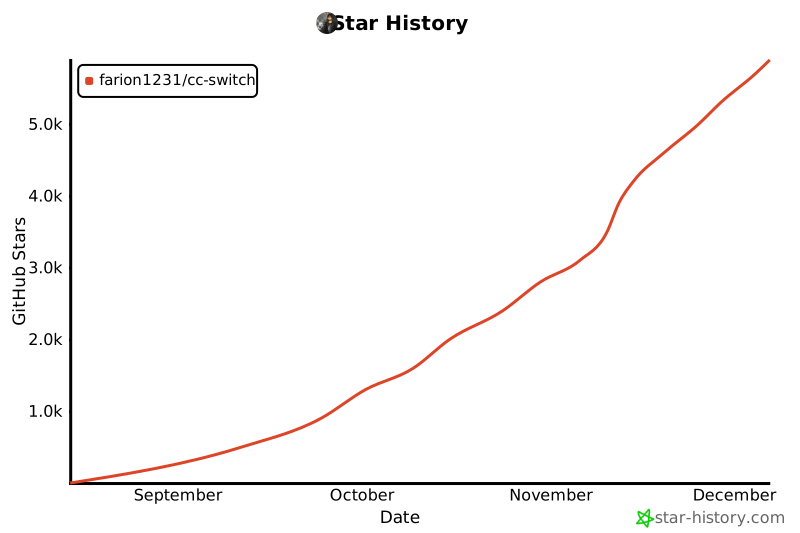
Star History
License
MIT © Jason Young